

Use the Assistant’s browser to inspect a web application, reproduce a workflow or verify a change on a connected terminal. Public research and interactive browser work have different state and permission boundaries.

Connect before testing

Connect and approve a terminal. The CLI installs the browser runtime. Choose the workspace containing the application and the required network scope before starting a login flow. Local Access permits the controlled browser to reach services on the runner’s localhost. A localhost application can still require Full Network Access if it loads remote assets, APIs or an external login provider. Changing between Local and Full Network Access recreates the browser context and loses its current cookies and form state. Terminal command permissions and networking are independent. Browser access does not grant shell access outside the workspace. See terminal permissions and approval policy.

Ask for a verifiable result

A useful browser request names the application, initial state and expected business outcome. For the fictional Asterion Supply application:
The Assistant inspects the current page before interacting, then verifies the visible result. A clicked button or a successful form fill does not by itself prove the business operation completed. For a write, also inspect the resulting order, Job or other durable evidence.

Follow Live Preview

After a successful browser action, open Live Preview from its activity card or the browser shortcut beside the terminal control in Composer. The preview follows the current device, workspace, session and tab. Minimize it and use the compact controller to return. Live Preview requires a personal browser session in RevoEngine. A CLI API key can connect its terminal, but that key or a service-account session cannot authorize the human preview.
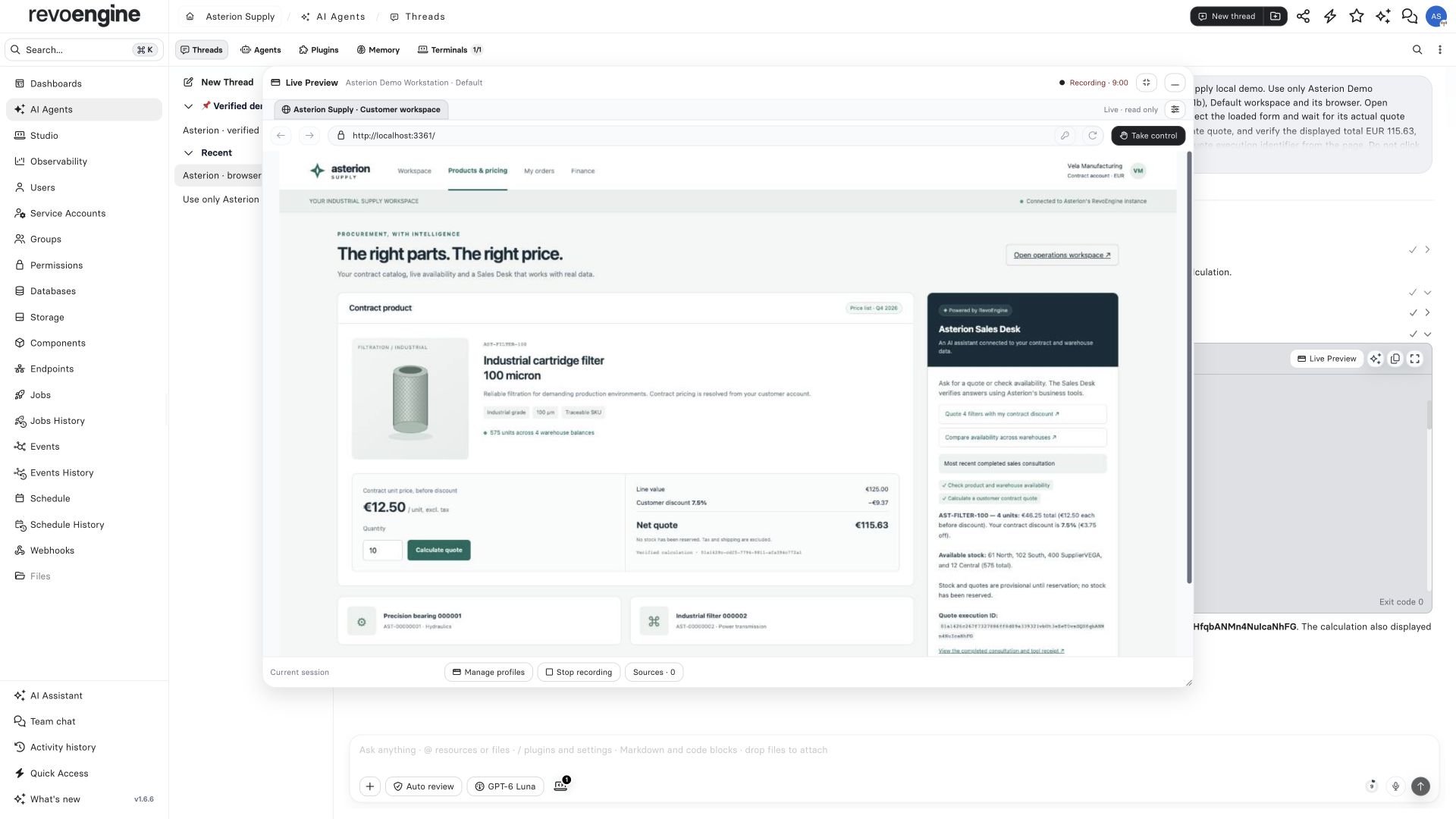
RevoEngine Live Preview displaying the synthetic Asterion customer portal with read-only viewing and a Take control action

Live Preview of the real local Asterion portal in RevoEngine. Viewing the page does not grant control or reserve stock.

Watching is read-only. To interact yourself, acknowledge private takeover. The Assistant’s browser actions and recording pause while you control the session. Complete the human step, then finish takeover and resume. The Assistant checks fresh page state before continuing. A disconnected preview does not silently return control. Use takeover for MFA, a site challenge or a sensitive approval that needs a person. For an ordinary password field, the Assistant can request a secure input popup. The value goes to the connected browser session without appearing in the model-visible tool call. Filling it is distinct from submitting the form and verifying login.

Know what survives

Tabs and cookies survive later chat messages and brief reconnects while the runner and browser remain alive. The live context expires after one hour without browser activity. The runner permits four sessions and sixteen tabs per session; active sessions are not silently evicted at capacity. Session inventory remains scoped to the authorized owner. Closing a browser session or stopping the runner ends that live context. A registered terminal and a saved conversation do not reconstruct it automatically.

Choose the profile model available on your runner

Vault profiles are managed in Settings → Vault → Browser Profiles on compatible instances and runners. A personal browser session is required to manage them; API keys, service accounts and Support sessions cannot use the profile-management API. A profile has an owner, explicit users or Groups, and terminal/workspace assignments. Profile access never replaces access to its assigned workspace. A private profile is restricted by default; changing that policy can make its authenticated website identity available to other eligible users. Review that decision as access to the website account, rather than a cosmetic sharing preference. The owner can edit metadata and access, inspect active sessions, stop a session, clear saved website state or remove the profile. Revision conflicts require a fresh read before saving. Stopping one context does not clear the last saved login; clearing state does not log the user out of the website’s other devices. The management API returns metadata and session information, not cookies, authentication state or data keys. Local named profiles are a separate foreground macOS option. Connect with --browser-profile asterion-demo to preserve encrypted site state for the same user, instance, device and workspace. Encryption keys remain in macOS Keychain. Only one live context can write that profile; close the previous session before opening it elsewhere. This local persistence is unavailable in background service mode and on other platforms. Forget a local profile explicitly:
A saved profile can contain cookies, local storage and IndexedDB. Treat it as sensitive website authentication even though secure-input field values are not copied directly from the dialog. Neither profile model extends network grants or guarantees that the website will continue accepting a saved login. Website logout and server-side session revocation remain separate operations.

Record or capture a result

Screenshots intended for the user become conversation attachments. Internal visual inspection does not always create an attachment. Ask for the exact view you need: the price breakdown, import validation report or final Job result. Recording is opt-in. Select a local file, Private Storage or both. Local-only recording can remain within Local Access. Storage delivery requires Full Network Access and a supported provider upload path; a local HTTP file emulator is not equivalent to the production HTTPS upload contract. Recording pauses around private input and takeover. Workspace preferences accept a maximum frame rate from 5 to 60 fps and viewport dimensions. Updated CLI capture uses the selected viewport and FPS for native WebM encoding; update the CLI and its matching Chromium together. Older runners can still produce a capped recording. Encoded FPS does not guarantee that every frame contains a distinct browser update. A finalized Asterion portal recording measured 1920×1080 at 60 fps. Inspect the actual finalized file before promising output quality. Long sessions can produce multiple recording segments. An active segment is not a finalized artifact. Check the local file or completed Storage entry before sharing it. A browser action’s session status can omit recording details; that omission alone does not establish that no local recording exists. For public documentation, use a dedicated synthetic dataset and a demo identity. Keep account menus, credentials, access tokens, customer data and private endpoints out of the frame. A screenshot should illustrate a specific step and be paired with searchable text or code.

Public research fallback

Public retrieval starts with direct page reads. If a page needs rendering, a compatible connected terminal can render it in an isolated browser under the existing network authorization. This temporary read does not use a saved profile, interact with forms or consume the chat’s interactive session. Fallback cannot guarantee access through authentication, CAPTCHA or site restrictions. A public page read is not evidence that an authenticated application workflow was tested. Continue with Agentic coding, terminal lifecycle and Asterion Supply.
Last modified on October 20, 2026